Troubleshooting
Common problems with the HUD and the website, how to fix them, and where to ask for help.
For everyoneMost HUD problems have a quick fix. Try these before you ask for help.
The HUD is blank or won’t load
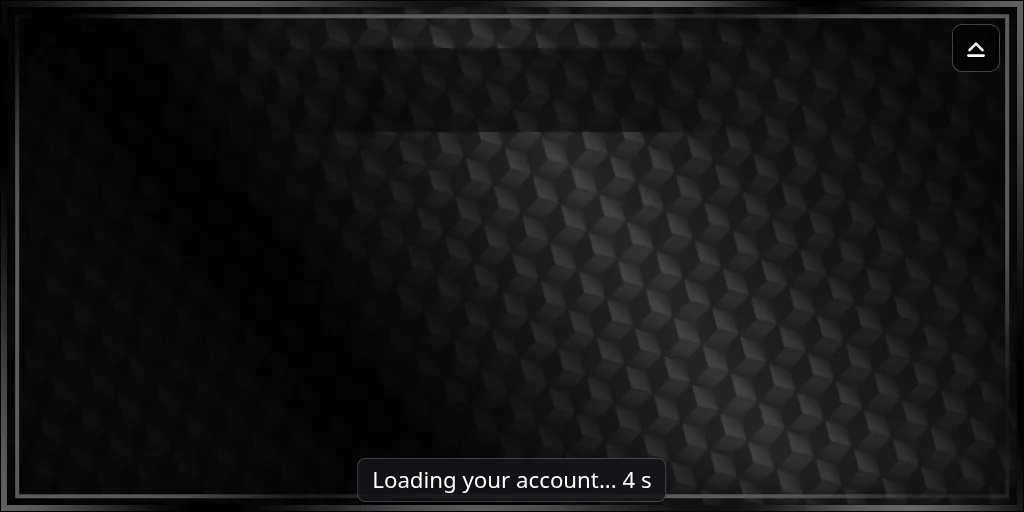
While it starts, the HUD shows what it’s doing in a line at the bottom, with how long it has waited:
| The line says | What’s happening |
|---|---|
| Loading the HUD… | The HUD’s own files are arriving. This comes before anything else |
| Signing in… | The HUD is signing you in with the link from the HUD you wear |
| Loading your account… | Your account, your character with their bars and buttons, and the colours and layout your sim set, all in one go |
The line goes away once your Home screen is ready, usually in a second or two. If a step has trouble, the line says which try it’s on and what went wrong, such as “no answer in 20 s”. The HUD tries again by itself.
If it stops on a step:
- Click the HUD once. Your viewer gives a HUD you aren’t looking at, or a viewer window that isn’t in front, very little time, and clicking wakes it up.
- Type
@relogon your command channel. The HUD says “Reloading HUD interface. Give it 5 seconds to reload.” and reloads its screen. - If that doesn’t help, type
@reset. The HUD restarts and signs you in again. - If the HUD doesn’t answer at all, take it off and wear it again.
If it keeps happening, take a picture of the line at the bottom and send it to your sim’s staff: it shows exactly where the HUD stopped. Your command channel is in the message the HUD posts when you log in.
- “The HUD’s files didn’t load” names a file that didn’t arrive. Take the HUD off and wear it again.
- “The HUD is taking a long time to start” means its files are arriving very slowly. Give it a little longer, then wear it again.
“Can’t reach the server right now - trying again…”
The HUD loaded but couldn’t get your account or character from the server: a call got no answer in 20 seconds, or the server turned it away. It keeps trying by itself, a little less often each time, and the message goes away once it gets through. The line at the bottom says which step it’s on. Wait a few seconds, or press Reload. If it stays, take the HUD off and wear it again, and tell your sim’s staff when it happened.
“Your HUD has lost its sign-in.”
The server no longer knows this HUD. Press Reload first. If the message comes back, take the HUD off and wear it again: wearing it signs you in fresh.
“The HUD hit a problem”
A page of the HUD stopped working. Press Home to go back to the Home screen, or Reload to start the HUD again. The problem has already been reported to your sim’s staff with the page you were on, so there’s no need to copy the message, but do tell them what you were doing.
“Click here to interact with the HUD.”
After 30 seconds without you using it, the HUD covers itself with this message. Nothing is wrong. Click it once and carry on.
The HUD says “Server offline”
The server is switched off for players for a while, and chat commands are off too. You don’t need to do anything. The HUD comes back on its own when the server is turned back on.
Chat commands don’t answer
- Type them on your command channel, with
@at the start, for example/6 @helpif your channel is 6. You can see and change the channel under Settings, Set Channels. - Leave a couple of seconds between commands. The HUD ignores one that comes too fast.
- “Command not found.” means the command is misspelt. See Chat commands.
- “You must accept the Terms of Service before using commands.” means you haven’t accepted them yet. Type
@tos accept, or see Your first sign-in. - “No active character. Go make one.” means you need a character first. See Create a character.
Other messages from the HUD
- “Hud outdated, sending update.” A newer HUD is on its way to you. Accept it, take the old one off, and wear the new one.
- “URL denied, retry in 30s” The region has run out of the web addresses scripts use. The HUD tries again by itself.
- “This region requires experience permissions.” If your sim uses an experience, accept it. If you refuse in a region that needs it, the HUD takes itself off; wear it again and accept.
The small dot in the top-left corner of the HUD shows its live connection: green when connected, orange while connecting, red when not connected. It reconnects by itself. If it stays red, try @relog.
Can’t sign in to the website
- Use Web Login under Settings on the HUD, or type
@passreset. Both give you a link that signs you in without a password. - Each link works once. If it only shows the sign-in form, get a fresh link.
- If your username and password aren’t accepted, check the username. The Password card in the website’s Settings shows the one to use.
- If the Password card asks for a current password you never set, ask your sim’s staff for a temporary password.
- If you use two-factor sign-in and lost your app or key, sign in with one of your backup codes. If you have none left, your sim’s staff can turn two-factor off for you.
See Your sim’s website for more.
For staff: why a HUD won’t load
When players say their HUD half-loads, goes blank or needs wearing again, look under Server › Settings › Debug at the hud_client_errors category. HUDs report problems there themselves, with the player, the page, the HUD version and what went wrong:
- “HUD can’t reach the server” means calls kept failing; the HUD sends it once it gets through again. The entry says what came back instead:
- a page titled “Just a moment…” or similar is your site’s protection service (such as Cloudflare) challenging the HUD, so check its security settings;
- “no answer in 20 s” means the call was sent but nothing came back - the server was busy, or something on the way dropped it;
- a server error points at the server itself.
- “The HUD was still loading after 25 s” comes from a HUD that hadn’t finished starting. waiting for lists the calls it was still waiting on, and for how long.
- “Profile/Get/Active refused” means the server answered the character request with a refusal while the account said a character was loaded. Look at that player’s account and character.
- “HUD crash” means a page broke while drawing. The entry has the error and the page; pass it on to the Black Box developers.
A player’s picture of the line at the bottom of their HUD shows the same thing from their side: which step it stopped on and why.
The category is on by default and keeps the newest entries.
Where to ask for help
- Press Help on the HUD’s Home screen, or type
@help, for links to your sim’s website and help pages. - For anything about your sim, such as your account, characters, items or the rules, ask your sim’s staff.
- For questions about the HUD itself, ask on the Black Box Discord.
When you ask, say what you did, what the HUD or chat said, and roughly when.