Items and crafting
How to make items, switch on item extras, and set up recipes, crafting stations, gathering nodes, containers and vendors, then give items out and check the logs.
For staffEverything players carry, make, gather, store and buy starts as an item on your sim’s website. This guide takes you from a new item to the recipes, stations, nodes, containers and vendors that put it in players’ hands. Use it when you build your sim’s goods.
Where it all is
| Page | Menu path |
|---|---|
| Items and their editor | Game Design › Economy › Items |
| Recipes, stations, nodes, queue | Game Design › Crafting |
| Vendors and their lists | Game Design › Economy › Vendors & coins and Vendor item lists |
| Containers, banks and ATMs | Server › Settings › Containers |
| Optional rules | Game Design › Combat & effects › Game systems |
Make an item
- On Items, press Create item, give it a Name and Description, and press Create and edit.
- On Details, press Pick an icon, set its Weight, and choose Tradeable, Usable, Wearable, Stacks and Spawnable.
- On Equipping, add its slots with Add a slot and choose Takes all its slots or Fits any one of its slots. Needs skill and Needs to wear it set what a character must have to wear it.
- On Effects, add Stat bonuses it gives while worn, the Abilities a weapon attacks with or an item casts, and what happens When it’s used.
- On Combat, set how it works as a consumable, drone or emplacement in a fight.
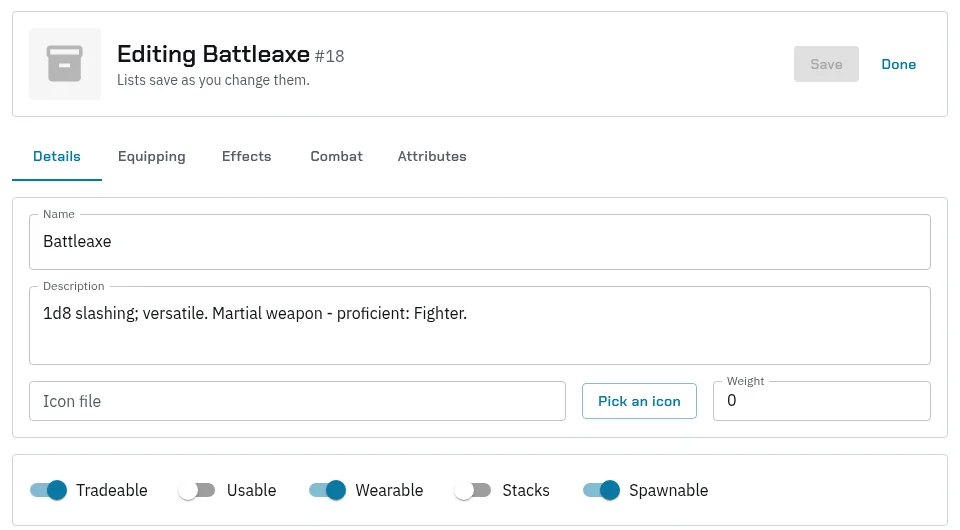 6. Press Save. Lists save as you change them.
Stacks is the big choice. A stacking item piles up as one count, like arrows or ore. With Stacks off, each copy is its own item and can hold its own values, such as durability, quality or binding. Changing it later doesn’t convert copies players already hold.
The Attributes tab stamps values on each copy when it’s made, equipped, used or enchanted. Rules here only stick to items that don’t stack.
Tip: A wear requirement only applies if your game system has Gear Stat Requirements or Gear Skill Requirements on.
Binding and keycards
A bound copy can’t be traded, given, sold or looted. The starting kit can bind what it gives. To clear binding on one copy, open the character’s Inventory tab and use the copy’s Attributes link.
A keycard is an ordinary item. To make doors and devices open for whoever carries it, add a Carries item rule to an access list on World Building › Setup, Access lists tab.
Issued items: serial numbers
For gear you hand out, such as ID badges, radios and batons, make it an issued item: on the item’s page, under Issued item, type a Serial prefix (such as BDG) and press Make it an issued item. It has to be a one-of-a-kind item, not one that stacks.
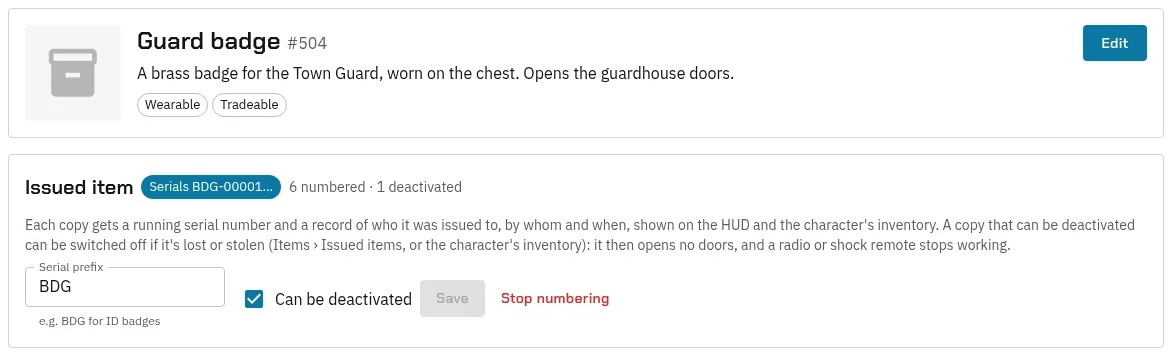
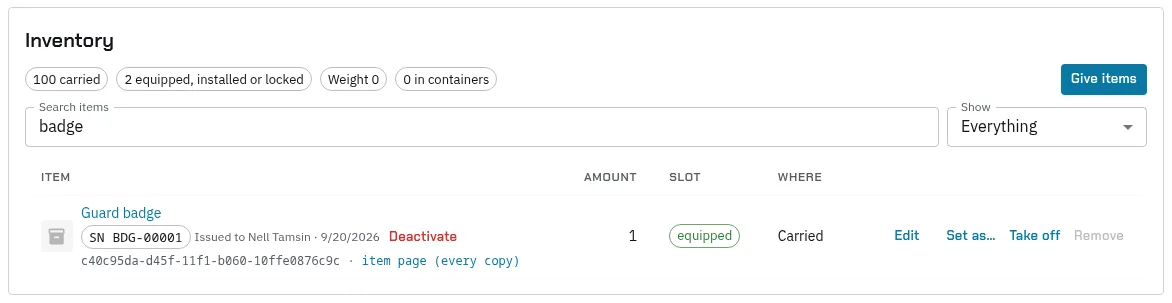
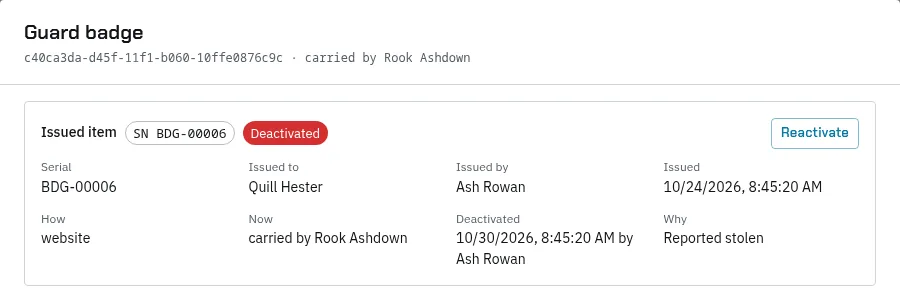
- Every copy gets a running serial number, such as BDG-00042, and a record of who it was issued to and when. It shows on the HUD in the item’s note (“SN BDG-00042 · Issued to …”) and on the character’s Inventory tab. Click the item there to open the copy and see its whole record: serial, who it was issued to and by, how and when, where it is now, and when and why it was last deactivated or reactivated.
- Copies that already exist are numbered when you switch it on, issued to whoever holds them.
- The serial stays with the item when it’s given, traded or put in a container. A copy that’s used up or sold to a vendor leaves its record behind.
- Can be deactivated (on by default) lets a lost or stolen copy be switched off. Untick it for gear that only needs a serial and an owner, such as collars, and press Save.
- Stop numbering stops new copies getting serials; numbered ones keep theirs.
Deactivating a lost or stolen copy
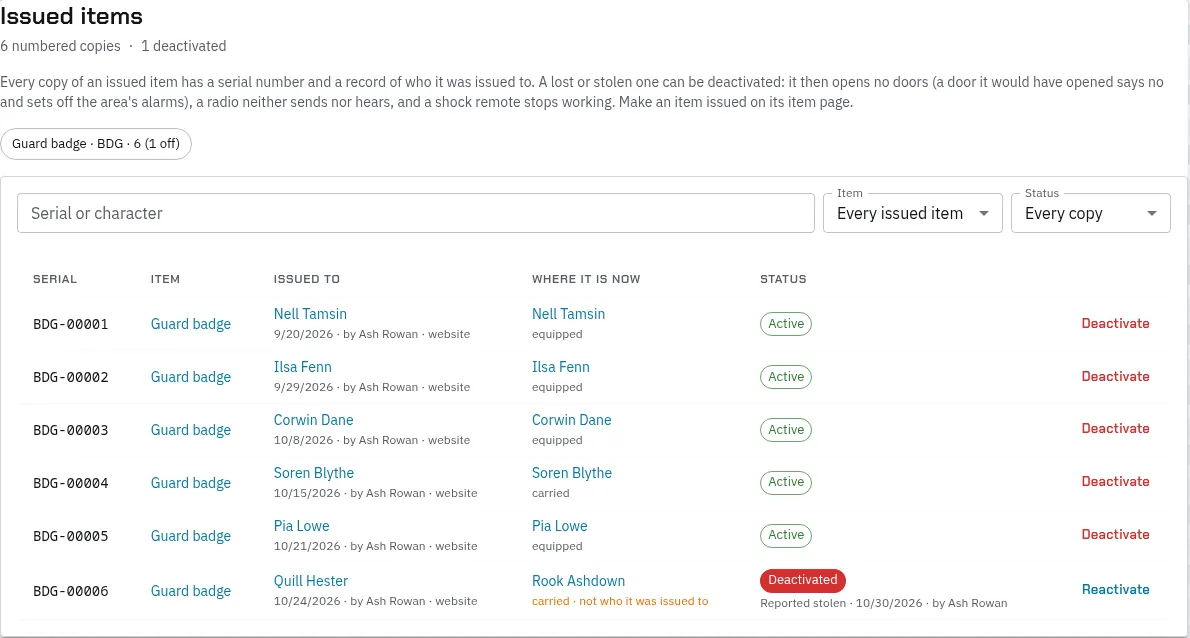
A copy keeps working for whoever has it until it’s reported. To switch it off, find it on Items › Issued items (search by serial or by a character’s name) or on the character’s Inventory tab, press Deactivate, and say why, such as Reported stolen. You need spawn_items, admin or superadmin.
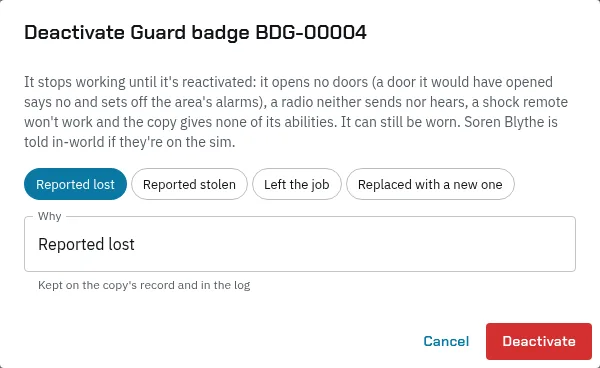
A deactivated copy:
- Opens no doors or devices. A door it would have opened says no, sets off the alarms in its zone, and tells the wearer their badge has been deactivated.
- As a radio, neither sends nor hears
@radio, and the sound board’s Everyone with a radio leaves it out. - As a shock remote, refuses to work. Its item abilities, such as a baton’s shock, are gone.
- Can still be worn. It still counts for Deny rules on access lists, for weight and for armour.
Whoever has it is told in-world, and the HUD’s item note ends with “DEACTIVATED”. Reactivate switches it back on. Every change is logged as Issued Item Changed, and Items › Issued items shows who changed it, when and why, and where each copy is now.
Item extras you can switch on
Each extra does nothing until you switch it on for your game system. Most only work on items that don’t stack.
| Switch | What it does |
|---|---|
| Item Wear | Copies with durability lose item_wear_daily (2) a day online and item_wear_fight (2) a fight. |
| Item Copies Count | Makes wear matter: a Worn copy loses its quality bonuses and a Broken one gives nothing. |
| Item Repairs | Repair on the HUD restores durability for some of its maximum, and reforging brings the maximum back. At 0 the copy crumbles. |
| Salvage | Breaks gear down for salvage_percent (25) of its recipe’s materials. |
| Crafting Roll | Crafts roll for quality from Crude to Masterwork, which sets durability and quality points. |
| Signature Items | A Masterwork can become a named Signature piece. Approve names on the Signature tab of the crafting page. |
| Heirlooms | A Signature piece with all its contributions plus a component with stat LEGEND becomes an Heirloom. Design its property on the Signature tab. |
| Spoilage | Items with stat SPOIL keep for a time by quality, spoil to half strength, then rot away. |
| Ammunition | Weapons linked to an ammunition item use it up on each attack roll. The link has no page on the website yet. |
| Carry Weight Limit | Refuses equipping past max_carry_weight (12), counted from each item’s Weight. |
Recipes and recipe groups
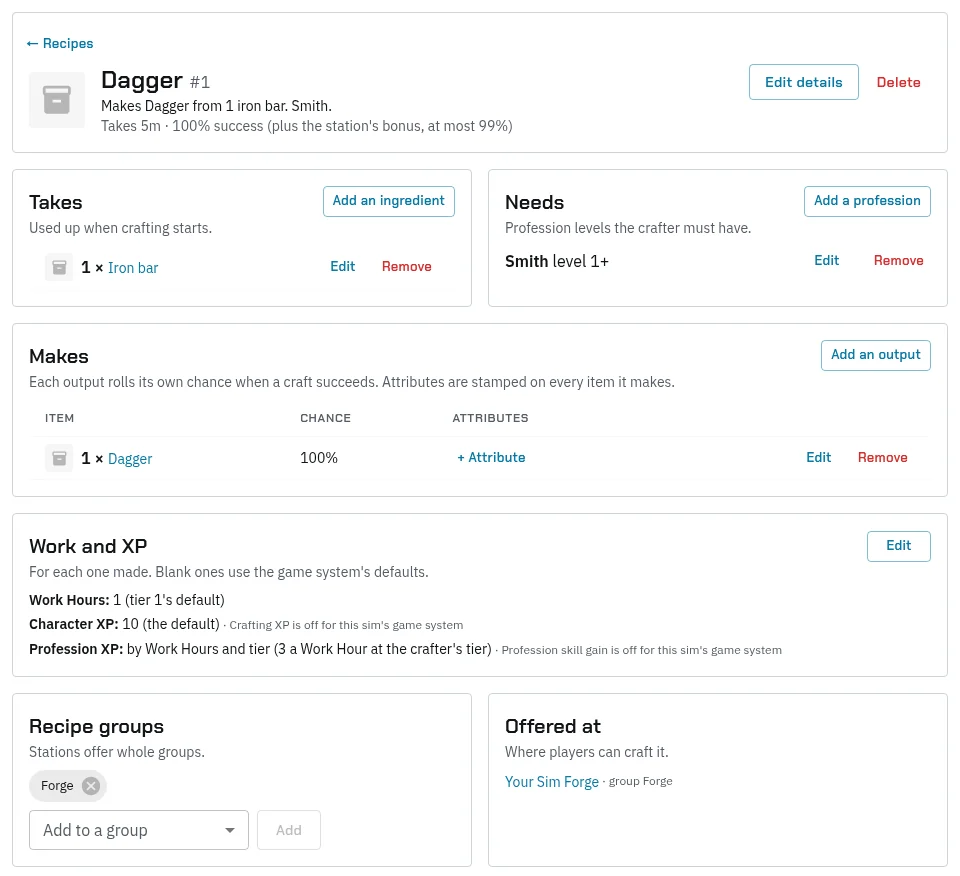
- On Recipes, press New recipe and name it.
- Press Edit details to set the Craft time (seconds) and Success chance (%). The station’s bonus is added, up to 99%.
- Under Takes, press Add an ingredient. Ingredients are used up when crafting starts.
- Under Needs, press Add a profession and set At least level. Without one, anyone can craft it.
- Under Makes, press Add an output with its Chance it’s made (%). Each output rolls its own chance on a success.
- Use Add to a group to put it in a recipe group.
A station offers whole recipe groups, plus any single recipes you add to it. A recipe no station offers can’t be crafted, and its page says so.
With Crafting Roll on, the highest profession level sets the recipe’s tier (0 to 100 is tiers 1 to 5), and craft_dc_tier_1 to craft_dc_tier_5 set the DC.
Under Work and XP, press Edit to set these for each item the recipe makes. Leave a box blank to use your game system’s default:
- Work Hours: blank uses the recipe’s tier. 0 means no Work Hours and no profession XP from them.
- Skip the crafting roll: the recipe uses its own success chance, with no care, quality or rare component. Use it for simple steps like refining.
- Character XP: the XP the crafter earns toward their next level, with Crafting XP on. Blank uses XP per item crafted, and 0 gives none.
- Profession XP: the XP the crafter earns in the profession, with profession skill gain on. Blank works it out from the Work Hours and the tier. A crafter whose skill is a tier above the recipe gets a third, and two tiers above gets none.
Crafting stations
- On Crafting stations, press New station, then Edit details.
- Set the Region, Position and Must be within (metres). The HUD lists stations in the player’s region and lets them craft within that distance.
- Set Jobs at a time.
0makes an auto-crafter: anyone can queue, one job runs at a time. - Set a Success bonus (%) and, with the crafting roll, a Crafting roll bonus.
- Choose the switches: Hand finished items straight over, Enchanting table and Crafter must stay nearby until it’s done.
- Add recipe groups with Add a group, and single recipes with Add a recipe.
Watch out: Always fill in Must be within (metres). Left blank, nobody can reach the station. Keep Hand finished items straight over on as well: nothing in-world collects finished items yet, so with it off you deliver each job by hand.
Powered by (env object key) ties the station to an object on your power grid. Blank is always on. Without power, new crafts are refused and finished jobs wait. An in-world crafting table is optional. Give its script an auth key from Server › Auth Keys and rez it with a blank description, where it writes its own key. Put that key in Powered by to show the queue as floating text.
The queue and timers
- Materials and Work Hours are taken when the craft starts.
- A character can have one job at a time, except at an auto-crafter. Jobs wait for a free slot, oldest first.
- The timer runs while the player is offline. With Work Hours on, each Work Hour takes an hour of real time.
- On Craft queue, you can Start now, Finish now, Deliver a ready job or Cancel one, keeping or giving back the materials.
More station rules
If you switch them on:
- Enchanting: players set runes at an enchanting table. Set
enchant_professionto the profession that does it, and add runes on the Enchantments tab. - Work Hours: each account has Work Hours, up to
work_hours_cap(24), spent on crafting, gathering and repairs. - Station Fuel: unpowered master stations burn
station_fuel_itemeach craft.
The Breakdown tab can wait: the HUD has no button for it yet.
Gathering nodes
- On Loot nodes, press New node. Its number goes in the in-world node’s description.
- Press Edit details to set the Type: Normal takes one energy a gather, War takes none. Choose How it rolls.
- Press Add an item for each thing it gives, with its Weight or Chance (%).
- Press Add a tool if it needs one. Carried tools aren’t used up.
- Rez the node object with the node script, your auth key and the node’s number in its description.
Players gather within 5 metres, in character. Without Work Hours, the Nodes task on Server › Settings › Cron sets every character’s gathering attempts back to its resetValue (5) each time it runs, so its interval is how often they refill. They don’t pile up. If you switch on Node Depletion, each account gets node_attempts_per_day (3) tries at a node a day. If you switch on Gathering Roll, Set terms gives a node a skill, tier, DC, rare find and harvests before it rests.
Containers and shared storage
On Server › Settings › Containers, each container has a Kind: Bank (each character’s own), Container (shared) or ATM (the bank’s cash machine). You can set Needs an item to open (optional) and Must be within (metres, optional). Fill in the distance, or players can’t use it. The page edits existing containers and has no button to add one.
For a shared container, Groups and permissions opens who can View, Deposit and Withdraw. Faction leaders manage their own under Faction Leaders › Container permissions.
Vendors and the Item store
- On Vendor item lists, press New item list, then Add an item. Set The vendor to Sells it to players or Buys it from players, set the price, and choose Never runs out or Limited stock with Restock to and Chance each restock (%).
- On Vendors, press Add a vendor, then Edit details for its Region, Position and Must be within (metres). Only for limits it to a group.
- Give it lists with Add a list.
Restocking runs from the VendorRestock task on Server › Settings › Cron, which starts switched off. Until it first runs, nothing runs out. Sells online (Item Store) lets players buy from that vendor on Main Menu › Items › Item store, though they sell to vendors in-world only.
Give items to players
Open the character under Staff › Players › Characters and go to their Inventory tab. With superadmin, admin or spawn_items you can:
- Give items: search for an item, pick an amount (up to 1,000) and give it. It goes into what they carry. Like
@admin spawn, it’s logged, posted to the admin Discord, and the player is told in-world if they’re wearing their HUD. - Change a quantity: type a new amount in a stack’s box and press Enter. Stacks in containers can be changed too.
- Set as…: puts an item they carry on them as Equipped, Installed or Locked, or changes the state of something they already wear. From a stack, one of it goes on them and the rest stay in the bag. They can take equipped items off themselves; installed and locked ones stay on until staff take them off. All three count for their stats. The item’s state shows as a chip beside it, and the HUD calls installed items Implanted. The player is told in-world, and it’s logged.
- Take off: for an equipped, installed or locked item. It’s refused if something else they wear needs it.
- Remove: an item or a whole stack, after you confirm. Take an equipped item off first.
Edit one copy of an item
Press Edit on a one-of-a-kind item, or click its name, to open that copy. What you change there is for that copy only. Changing what every copy of an item gives is done on the item’s own page (the item page (every copy) link).
Stats shows what the copy gives while it’s worn:
- Every copy: the item’s own stats, such as STR +2 on every Iron Ring.
- This copy: stats only this one has. Added by staff holds the ones you add; it can also list the copy’s Enchantments, Quality and Heirloom bonuses.
- Change a value and press Enter, or press × to take it off.
- To add one, pick a stat under Add a stat, give it a value and press Add. A minus value takes away.
So for a ring someone enchanted with STR +2, add DEX +1 and the ring gives both, while every other Iron Ring stays as it was. Stats added by staff work on every sim, and the player sees them in the HUD’s inventory, for example “+1 DEX”. Enchantment, quality and heirloom bonuses only work on sims that use item copy bonuses; elsewhere they’re marked don’t count on this sim.
Below the stats, the window also shows:
- who has it and its ID;
- how it was made: the crafter, recipe, quality roll and anything added to it;
- for a keycard or badge, its access: level, who it’s keyed to, expiry, doors, and whether it’s revoked or tampered with;
- every item attribute from the catalog, grouped by category. It opens on the attributes the copy has; switch off Only what it has to see all of them with their defaults. Set, Change or Clear any of them. Values the game keeps itself (marked with a lock) only superadmin can change.
Only attributes marked used by the game do anything in play. The others, such as STR Bonus, are only kept on the copy, so use Stats to change what an item gives.
Editing a copy needs item_edit or spawn_items. Changing the attribute catalog itself, on Game Design › Economy › Item attributes, still needs item_edit.
Other ways to give items:
- On Staff › Premade operations › Manage operations, make an operation with a Give an item or Take some of an item step. Apply it to a character on Apply an operation, after checking the preview. Given as on a Give step puts the item on them Equipped, Installed or Locked instead of in their bag; for a stacking item the whole amount goes on them together.
- In-world,
@admin spawn [quantity] [item name] [player name]gives items, if your role can spawn them. - For coins, use Give and Take under Coin purse on the character’s Inventory tab.
Website changes other than gives are logged as “Staff Inventory Changed”, and every change is also in the Inventory log. Changes to a copy’s stats and attributes are in the Master log.
Logs to check
On Logs, pick the log at the top:
- Inventory: every item gained or lost, with its source.
- Crafting: materials used at each station. Items made aren’t logged.
- Gathering: what each node gave.
- Containers and Vendor sales: deposits, withdrawals, purchases and sales.
Logs › Master log records staff changes to recipes, stations, nodes and craft jobs.