Moderation
How to look after players and the sim from the website, from accounts and character sheets to the radar, bans, stats, logs, reports and the panic switches.
For staffModeration is the daily care of your players and your sim: finding accounts, checking characters, seeing who’s around, removing people who break the rules, and reading the logs when something goes wrong. Most of it lives under Moderation, Staff › Players and Logs. You only see what your permissions open; see Groups, ranks and access.
Find a player
Staff › Players › Users and Staff › Players › Characters open the same directory. Switch between Characters and Accounts at the top, and search by name or #id, or for accounts by display name or UUID. Filter by Status, and for characters by Group or Include NPCs. Browsing players needs profile_details.
The account page
Open an account to see when it was made and last logged in, its exp, last region, UUID, HUD channels, characters, Permissions and Recent sim visits. With alt_list you also see Possible alts: accounts that shared an IP or a website browser with it, or signed in from the same computer.
- Same browser: the same browser signed in to the website (it keeps a mark between visits).
- Same computer: the HUD or the website read the same machine: its graphics card, processor, time zone and the way it draws. This works through a VPN and across a new IP, and links HUD and website sign-ins on the same computer.
- Same hardware: only the graphics card, processor and time zone match. A popular set-up can belong to two different people, so look for Same IP as well before acting.
Finding alt accounts explains how much each match tells you and how to check it. Only hashes of these details are kept, never the hardware names themselves. They’re kept for good, because people come back years later; to forget computers nobody has used for a while, set the global alts-deviceKeepDays to that many days. Accounts on the IP log exclusion list aren’t recorded. Browsers built to resist tracking, such as Brave, change these details on every visit, so their website sign-ins don’t match anything.
Lock account shuts an account out. It’s signed out of the website and its HUD is refused until someone presses Unlock account. This needs account_lock. You can’t lock your own account or a Super Admin’s. Each lock and unlock is logged and posted to the admin Discord group.
Player tools
Staff › Players › Player tools has four tabs:
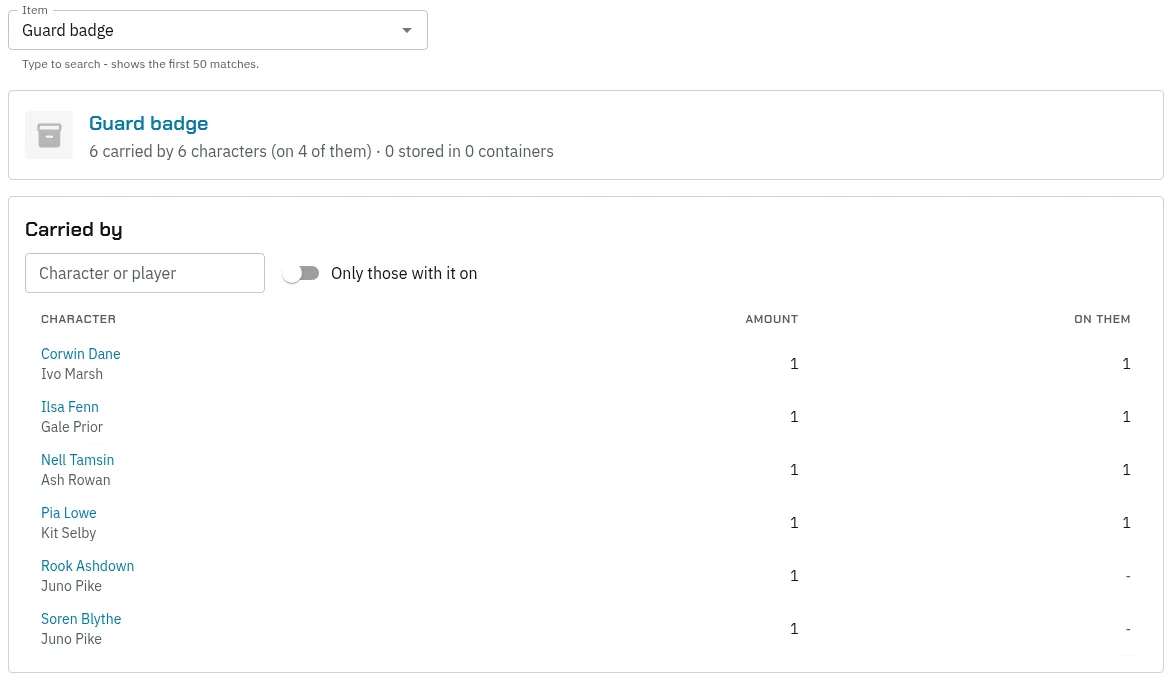
- Find an item: who holds an item, carried or stored, and how many each has On them (equipped, installed or locked). Narrow the list to a character or player name, or switch on Only those with it on, say to see who has a radio on. For an issued item’s serials, see Items › Issued items.
- Effects & wounds: every running timed effect and wound on the sim. End one early or heal a wound, with
hp_admin. For one character, their page’s Effects tab shows more. - Transfer: move a character to another account. Needs
profile_transfer. - Password & two-factor: Generate temporary password sets a new password, shown once, to pass on privately. Switch off two-factor removes someone’s two-factor sign-in. Both are for Super Admins and both are logged.
Tip: A player who forgot their password can still press Web Login in the HUD, which signs them in without one. Reset it only when they need to sign in with a password, and they then set their own in their settings.
Characters
A character’s page has tabs for Details, Sheet, Inventory, Effects, Stats & skills, History and Manage. You see the parts your permissions allow.
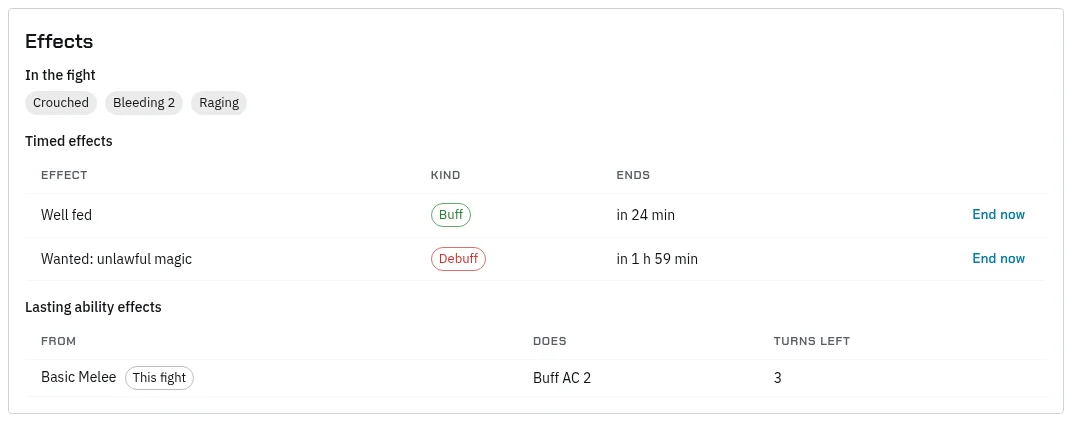
Effects shows everything on the character right now: what they’re under in a fight (such as Bleeding, Prone or a spell being channeled), timed effects such as buffs, debuffs and Wanted, ability effects with turns left, and wounds. With hp_admin you can end a timed effect or heal a wound there. The owner sees their own.
- Details:
profile_editchanges the name, class, HP, Mana, Energy and KIA;profile_safety_editchanges the title, info and Also known as. Exp also needsexp_set_admin. Every change is logged. - Respec, on Details: resets every stat point and skill to spend again. Staff with
profile_respecrespec for free, whateverweb-charRespecallows players. - Manage: Disable character stops it being played and takes it out of the sheets directory. It needs
profile_disable, and the player has to switch to another character in-world first.
Sheet review
If you switch on web-charSheetApproval, character sheets wait for staff with sheet_processor or profile_details.
- Open Main Menu › Character sheets and pick Needs review. Sheets wait oldest first, marked First review or Revision. Compare shows what changed.
- Open the character’s Sheet tab. Compare changes shows the difference between revisions.
- Press Approve, or write a comment and press Deny. A denial needs the comment.
Comments are Public or Private. Players don’t see private ones, so use them as staff notes. Posting them needs sheet_comment_private.
The radar
Moderation › Radar shows who’s on the sim now and who left in the last 90 minutes. Switch on Live (every 30s) to keep it fresh. Chips mark anyone with no account, no characters, a sheet waiting or a ban. The other tabs:
- Search: anyone the radar has seen, by any name they’ve had or their UUID. Moderation › Radar › Radar search opens it directly.
- Bans: Banned now or Every ban. Moderation › Radar › Bans opens it directly.
- Protected: avatars whose prims can’t be removed.
Add to radar adds someone it hasn’t picked up, by UUID. Click a name for their page: every name they’ve had, their account and characters, their time on the sim, their bans, and the actions you’re allowed. Opening the radar needs admin or any ban-menu permission.
Bans and kicks
Bans go through the ban server, an object you rez in-world. Without one, a ban fails and nobody is banned. See In-world setup.
On an avatar’s radar page:
| Button | What it does | Permission |
|---|---|---|
| Ban | Bans them from the estate now, for 5 minutes up to permanent | sim_ban |
| Add time | Lengthens a ban | sim_add_time |
| Unban | Lifts the ban now | sim_ban |
| Kick | Ejects them from your land now | sim_kick |
| Send ban again | Re-sends a ban a ban server missed | sim_reban |
| Send unban again | Re-sends an unban a ban server missed | sim_unback_check |
| Remove prims | Returns everything they’ve rezzed in the region. It can’t be undone | sim_remove_prims |
| Protect prims | Stops Remove prims working on them | sim_remove_prims |
A ban’s Reason is kept with it and posted to staff Discord. Every action is logged and posted to the admin Discord group. When a timed ban runs out, the BanTimer scheduled task lifts it and tells the ban servers.
Sim stats and RP hot spots
Moderation › Sim stats needs sim_stats. It shows who’s on the sim now, HUDs online and fights going on, then 7-day figures and charts for Population, Busiest times, Regions, Roleplay, Activity and Moderation: bans, kicks, unbans, time added and bans in force. The numbers come from an overnight rollup, so yesterday is the newest day. Switch on Table under any chart for the figures.
Moderation › RP hot spots is a heat map of where people roleplay, from the position of each emote. Pick the Region, the days, Emotes or People, and Who: everyone, a group type or one group. Compare with draws a second set in another colour. It shows counts only, never names or emote text. Admins can also pick a single character, and that look is logged.
Admins set up the map. Add level gives a section of a region a floor, with a height range, an area and a photo. Add room names a rectangle on that floor.
The logs
Logs needs view_logs. Pick a log at the top of the page; each has the filters that fit it, such as Who, Item, Event, Text, Outcome and When. Reading the logs explains every log and how to look into a theft, an XP complaint or a duplicated item.
Tip: When a player reports a missing item, start with Player timeline. It shows trades both ways, containers, vendors and crafting in one list.
Reports and awards
Main Menu › Reports › View lists in-character reports, which any signed-in player can read. You comment as one of your characters. Filter by type or by who was involved. Admins (superadmin or admin) also get Delete report on a report’s page. It removes the report with its comments and the people involved, for everyone, and you can say why. It’s logged as Report Deleted. A copy is kept on the server in case it was a mistake, but there’s no undo on the website.
Main Menu › Awards › View lists award requests. Staff with edit_awards can Approve or Reject them, change who was involved, and fix the Award type while a request is New. An hourly reminder of waiting awards goes to the admin Discord group. Set report and award types on Server › Settings, on the Reports & awards tab.
Admin messages
Moderation › Admin messages sends something to every player wearing the HUD, or to the ones you pick. It’s the same as @admin msg, @admin popup and @admin reset in chat.
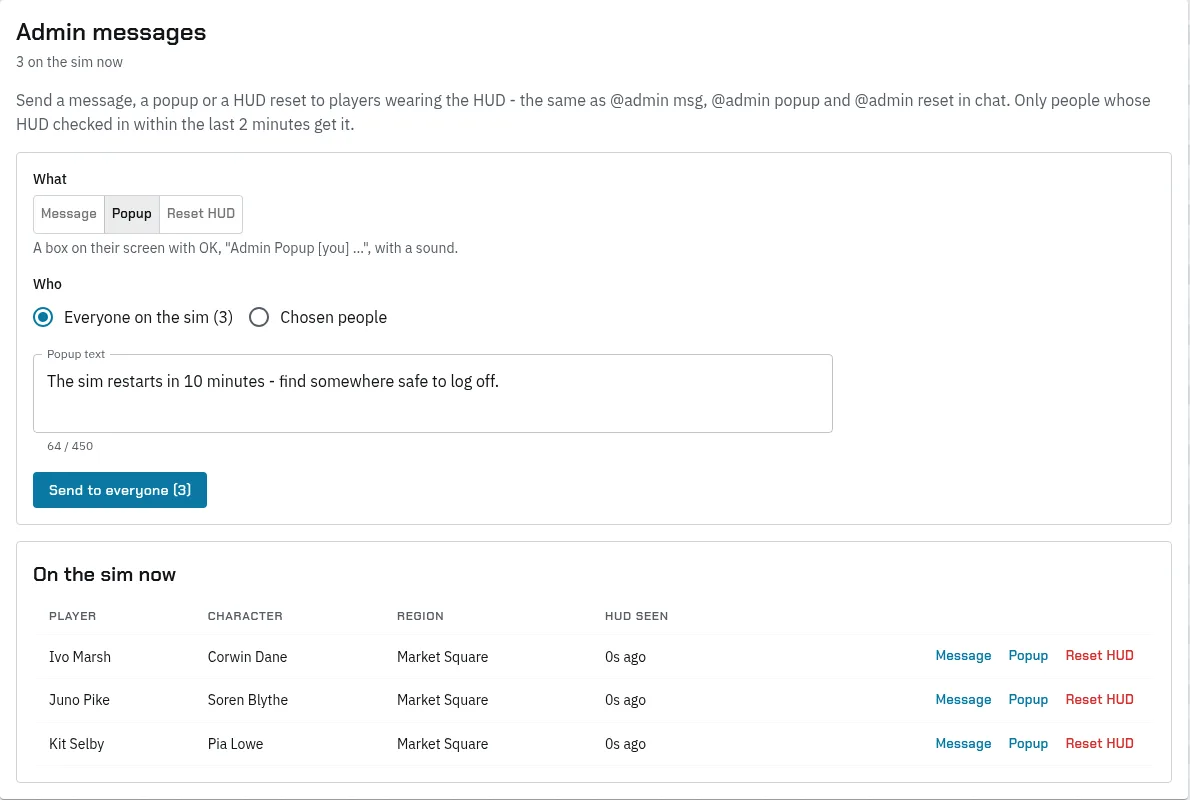
- Under What, pick:
- Message: a line in their chat, “Admin Msg [you] …”, with a sound.
- Popup: a box on their screen with OK, with a sound.
- Reset HUD: their HUD restarts. Use it for a stuck or out-of-date HUD; it interrupts whatever they’re doing on it.
- Under Who, pick Everyone on the sim or Chosen people. Only people whose HUD checked in within the last 2 minutes can get it. On the sim now lists them, with Message, Popup and Reset HUD next to each person as a shortcut.
- Write the text and press Send. Sending to everyone, and any reset, asks you to confirm first.
Each kind needs its permission: msg_admin (Hud - Send messages), popup_admin (Hud - Send popups) or reset_admin (Hud - Reset). Admins and Super Admins can send all three. Every send is logged with what was sent and to whom.
Panic buttons
Server › Panic buttons has two switches for emergencies:
- Pause the economy (
panic_economy): trading, paying, vendors, crafting, banks and every item and coin source stop. Staff tools on the website keep working, so you can fix things. Use it for a problem like a dupe bug. - Turn the server off (
panic_server): players’ HUDs show an offline screen and chat commands stop. Super Admins and holders ofpanic_serverkeep their HUD. In-world objects and the website keep working.
Each flip needs a reason, which players see. It’s announced on the sim, posted to the admin Discord group and logged, and History shows the latest ones.
Discord alerts
Server › Discord needs discord_edit.
- On Webhooks, press Add a webhook for each channel, with a Name and its Webhook URL.
- On Groups, press + webhook to link each group to its channels. A group the system posts to that doesn’t exist yet shows a warning and Create it.
- On Ping keys, press Add a role on a key, pick the webhook and paste the Discord Role ID. Don’t rename the keys; the system asks for them by name.
- Press Test on a group or webhook to send a test message.
| Group | What it gets |
|---|---|
admin |
Bans, kicks, unbans, ban expiry, account locks, sheets and new characters, award reminders, premade operations, panic buttons |
sheet-arrivals |
A character whose sheet needs checking arrives, if you switch on web-sheetArrivalPing |
system-alerts |
Errors from debug categories with Discord alerts on |
radio |
Staff radio |
bounties and bank |
The bounty board and bank alerts |
events, economy, lawful and community |
New events, the economy’s reports, outlawed spells in lawful zones, and community projects |
The ping keys the system uses are staff-review for a new character to review, rewards for waiting awards and sheet-processor for sheet arrivals.
Scheduled tasks
Server › Settings › Cron (Super Admin only) lists the tasks that run on their own, when each last ran and when it runs next. Run on next pass runs one soon. Check it when timed bans aren’t lifting or stipends aren’t paying. Server settings and scheduled tasks lists every task and what needs it.